
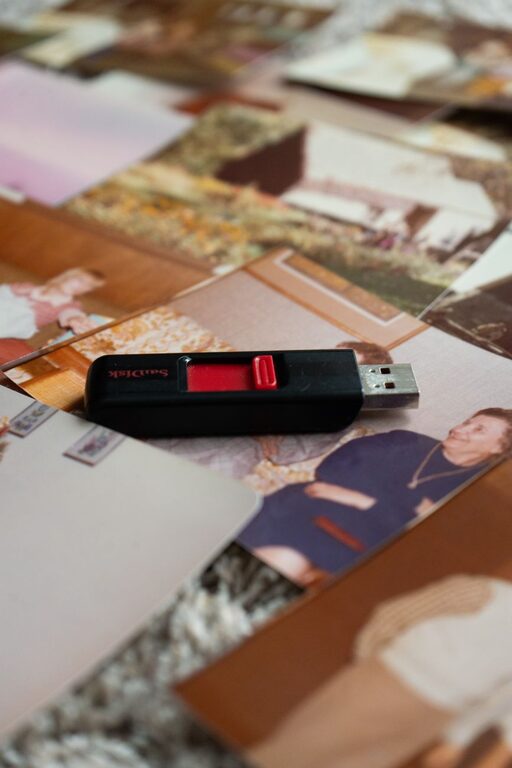
Family photos often live in many places at once: phones, tablets, laptops, cameras, memory cards, and social media accounts. Without a simple system, finding a specific birthday, vacation, or school event can become frustrating.
The good news is that organizing family photos does not require professional software or complicated methods. With a few consistent habits, you can bring your photos together, remove clutter, and make sure important memories are available across your devices.
Start With a Photo Inventory
Before organizing anything, find out where your photos are stored. Make a list of every device, account, and storage location that may contain family pictures.
Check places such as:
- Smartphones and tablets
- Digital cameras and memory cards
- Desktop and laptop computers
- External hard drives and USB drives
- Cloud photo services
- Messaging apps and social media accounts
- Scanned prints and photo folders
Do not try to sort everything immediately. First, gather a general overview. Knowing where your photos are located helps you avoid missing important files and prevents you from creating duplicate copies during the next steps.
Choose One Main Photo Library
A central photo library makes organization much easier. Choose one primary location where your family photos will be stored and managed.
For many families, a cloud photo service is convenient because it can sync pictures across phones, tablets, and computers. A computer-based library can also work well, especially when paired with a separate backup system.
Your main library should offer:
- Automatic syncing from mobile devices
- Search by date, location, or image details
- Albums or folders for grouping photos
- Easy downloads to a computer or external drive
- Options for sharing selected photos with family
Avoid using several services as equal “main” libraries. Multiple storage locations can create confusion and make it difficult to know which copy is the most current.
Set Up Automatic Uploads
Once you choose a main library, turn on automatic photo uploads for your phones and tablets. This helps protect new photos and reduces the chance of forgetting to transfer them later.
Review the upload settings carefully. Some services allow you to choose between full-quality files and smaller versions that use less storage. Full-quality files are useful if you plan to print photos or edit them later, while smaller versions may be enough for everyday sharing.
Also check whether uploads happen only over Wi-Fi. This setting can help control mobile data use, especially when your devices contain many videos.
Automatic uploads are helpful, but they should not be your only backup. A synced library can sometimes copy deletions or changes across devices. Keep another backup in a separate location.
Create a Simple Folder and Album System
A consistent structure helps everyone in the household understand where photos belong. Keep it simple enough that you will continue using it.
One useful approach is to organize by year and event:
- 2026 Family Photos
- 2026 Family Photos Summer Trip
- 2026 Family Photos Birthdays
- 2026 Family Photos School Events
If your photo service uses albums rather than folders, follow the same idea. You could create yearly albums and add smaller event albums when needed.
Avoid creating too many categories. An album for every individual day may seem organized at first, but it can make browsing harder. Use broad, meaningful groups that reflect how your family remembers events.
For large collections, organize older photos by decade or year first. You can add more detailed event labels later when you have time.
Use Clear File Names for Important Photos
Most photo apps make it easy to search images without changing the original file name. Still, clear names are valuable for important photos, scanned prints, and files stored outside your main library.
A useful naming format includes the date, event, and people or location:
2026 07 Beach Vacation Family
For scanned photos with unknown dates, use an approximate year or a description:
1980s Grandparents Holiday Gathering
Use the same style every time. Avoid names such as “image1” or “new photo,” which provide little help when you are searching years later.
Remove Duplicates and Unwanted Images
Photo collections often contain screenshots, blurry pictures, accidental shots, and several versions of the same image. Removing these files can free storage and make your library easier to browse.
Start with the easiest items:
- Blurry or accidental photos
- Repeated screenshots
- Duplicate downloads
- Images saved from group chats
- Temporary pictures used for online listings or messages
When you have several similar photos, keep the one with the best focus, expression, and composition. If you are unsure, place possible deletions in a temporary album and review them again after a few weeks.
Do not rush through family photos. A quick review can lead to accidental deletions, especially when images look similar. Check your service’s recently deleted folder before it is permanently cleared.
Add Descriptions and Favorite Photos
Dates and locations are useful, but descriptions can preserve details that technology cannot always identify. Add notes to especially meaningful photos, such as the names of people, the event, or a short memory.
For example, a description might say:
- First day in our new home
- Grandpa teaching the children to fish
- Family reunion at the lake
Mark your favorite photos so you can quickly find the best images for cards, calendars, printed albums, or family slideshows. You do not need to label every picture. Focus on photos that you are most likely to use or share.
Keep Photos in Sync Across Devices
After your main library is organized, connect each device to it. Confirm that the same account is being used and that syncing is enabled.
On phones and tablets, check that new photos appear in the library after an upload. On computers, decide whether you want to view photos online or keep selected albums available offline.
Be careful when deleting photos from a synced device. Depending on the service, deleting an image on one device may remove it everywhere. Read the service’s deletion and backup settings so you know what to expect.
For family members who take photos, consider creating a shared album for events. This allows everyone to contribute pictures without merging multiple accounts into one.
Use a Three Part Backup Plan
A reliable photo system should include more than one copy. A practical approach is to keep:
- The main library on your preferred photo service
- A local copy on a computer or external drive
- An additional copy stored separately from your home
You do not need to back up every device separately if all photos are already copied to your main library. Instead, focus on protecting the main collection.
Schedule a regular backup, such as once a month or once every three months. Test a few files from the backup to make sure they open correctly. Store external drives safely and update them when you add important photos.
Make Photo Organization a Small Routine
The easiest system to maintain is one that fits into your normal schedule. Set aside 10 to 15 minutes each week or month to review new photos.
During this routine, you can:
- Confirm that recent photos uploaded correctly
- Delete obvious duplicates and unwanted images
- Add event albums
- Write descriptions for important pictures
- Check your backup status
You may also want to plan a longer review once or twice a year. Use this time to organize older folders, scan a few printed photos, and update your backup drive.
Protect and Enjoy Your Collection
Organizing family photos is not only about reducing clutter. It is about making memories easy to find, share, and preserve. Choose one main library, use a simple naming system, remove unnecessary files, and maintain more than one backup.
Most importantly, make the system practical for your household. A straightforward routine that everyone understands will work better than a complex method that is difficult to maintain. With a little regular attention, your family photos can stay organized and accessible across all your devices.